

Jun 28, 2026
How to Build a Self-Hosted Telegram AI Bot with DeepSeek-R1 (2026)
Learn how to build and self-host your own privacy-focused Telegram AI bot using DeepSeek-R1, Ollama, …
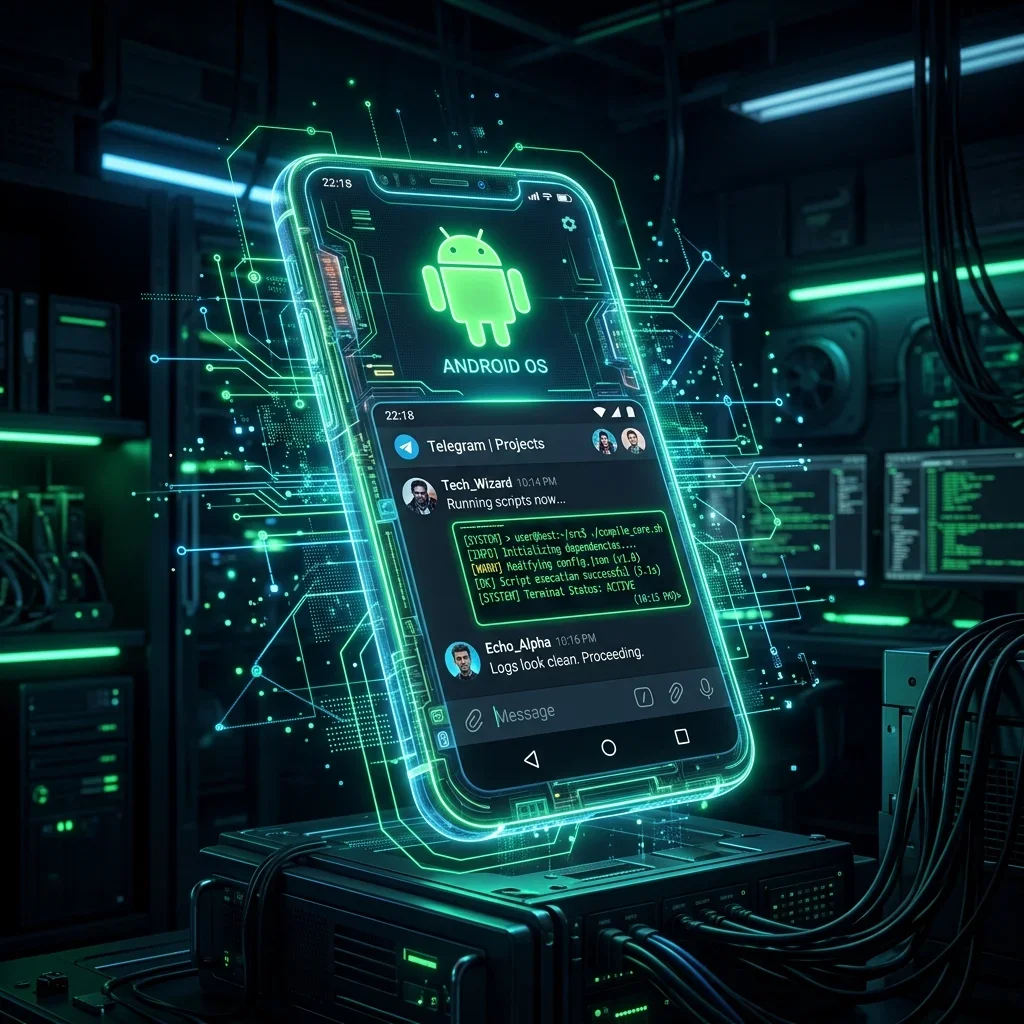
In 2026, the power of mobile hardware is often underutilized. Many users carry pocket-sized supercomputers capable of executing complex server scripts, compiling applications, and running background automation. A major trend in the Android developer community has been utilizing Termux—a terminal emulator and Linux environment app—alongside the Termux:API wrapper to interact directly with hardware components. By linking this local terminal to a **Telegram Bot**, you can remotely control your Android device from anywhere in the world without deploying a web server. This guide will show you how to build a serverless Python-based Telegram bot running inside Termux to manage commands, query device statistics, capture photos, and send location alerts with simple chat messages.
To control Android remotely via Telegram, install **Termux** and the **Termux:API** app, configure a Python script running `python-telegram-bot`, and authorize only your private Telegram user ID. Messages sent to the bot will invoke Termux commands (like `termux-camera-photo` or `termux-battery-status`) and reply with the outputs directly. For other Telegram utility guides, check the Telekit Science & Technology Directory.
Termux is a powerful terminal emulator for Android that installs a minimal Linux distribution. You can install packages like Python, Node.js, Git, and OpenSSH without needing root access on your phone. To interact with actual physical phone features—like the camera, GPS, clipboard, battery status, or SMS—you use the **Termux:API** extension, which provides command-line scripts that communicate with the Android OS.
By writing a Python script that polls for incoming Telegram messages, you can translate commands in your chat (e.g., /photo, /battery, or /gps) into system commands executed within Termux, returning the outputs (like images or location maps) directly to your chat window.




To set up the bot, prepare your Android device and install the required applications:
Important: Do not install Termux from the Google Play Store as those versions are outdated and unsupported.
Open Termux and run the following command to update your system repositories and install packages:
pkg update && pkg upgrade
pkg install termux-api python git -y
Install the Python package wrapper for the Telegram Bot API:
pip install python-telegram-bot requests---
Create a directory for your bot and write the script to listen for incoming authorized commands:
mkdir ~/termux-bot && cd ~/termux-bot
nano bot.py
Paste the following Python script into bot.py:
import os
import subprocess
from telegram import Update
from telegram.ext import Application, CommandHandler, ContextTypes

TOKEN = "YOUR_TELEGRAM_BOT_TOKEN"
AUTHORIZED_CHAT_ID = 123456789  # Replace with your actual Chat ID


async def is_authorized(update: Update) -> bool:
    if update.message.chat_id != AUTHORIZED_CHAT_ID:
        await update.message.reply_text("Unauthorized access attempt blocked.")
        return False
    return True


async def battery(update: Update, context: ContextTypes.DEFAULT_TYPE):
    if not await is_authorized(update): return
    # Query Termux API for battery status
    result = subprocess.run(["termux-battery-status"], capture_output=True, text=True)
    await update.message.reply_text(f"🔋 Battery Status:
{result.stdout}")


async def photo(update: Update, context: ContextTypes.DEFAULT_TYPE):
    if not await is_authorized(update): return
    await update.message.reply_text("📸 Capturing photo...")
    # Capture photo and save to file
    subprocess.run(["termux-camera-photo", "-c", "0", "photo.jpg"])
    if os.path.exists("photo.jpg"):
        with open("photo.jpg", "rb") as f:
            await update.message.reply_photo(photo=f)
        os.remove("photo.jpg")
    else:
        await update.message.reply_text("Error: Photo capture failed.")


def main():
    app = Application.builder().token(TOKEN).build()
    app.add_handler(CommandHandler("battery", battery))
    app.add_handler(CommandHandler("photo", photo))
    print("Bot is polling...")
    app.run_polling()

if __name__ == "__main__":
    main()
Replace YOUR_TELEGRAM_BOT_TOKEN with the credentials from @BotFather, and AUTHORIZED_CHAT_ID with your account ID. Run the script using Python:
python bot.py---
Granting terminal control of your mobile device to a bot is highly powerful but risky. If a malicious attacker discovers your bot’s username, they could run commands to steal photos, access location tracking, or extract text message details. You must secure your setup:
termux-volume music [volume_level]. Great for finding a misplaced phone.termux-clipboard-get.termux-sms-send -n [number] [message].termux-tts-speak [message].No! Termux and Termux:API operate within Android's user space, meaning all features listed above work on completely unrooted, standard Android phones.
Yes, the Python script must remain running. To prevent Android from closing the app during sleep, pull down your notification tray, tap on the Termux notification, and select "Acquire WakeLock". Also disable battery optimization for Termux.
Yes, you can configure your bot to accept terminal arguments and run any standard CLI binaries, allowing you to run backup scripts, git syncs, or diagnostic scripts remotely.
If you have built an open-source bot or Telegram tool, click "Submit Link" on our homepage to have it verified and listed in the Science & Technology category.
By connecting a Telegram bot with the command-line capabilities of Termux, you transform your Android device into a remotely manageable server. This setup opens endless opportunities for automation, hardware diagnostics, and mobile productivity without requiring cloud hosting. Configure your authorized user ID, set up the WakeLock, and enjoy the convenience of managing your phone through a chat interface!

Pick your interests and we'll show you the best communities first.
Stay updated with the latest Telegram groups and channels
Or scan the QR code
Loading community stats...
No active reviews. Be the first to add one!